Quick Installation
📥 Step 1: Download & Install
Download the installer from our website and run it. The installation takes less than a minute. After installation, the screensaver configuration will open automatically.
Note: If the download does not start, right-click on the button and select 'save link as'.
Run the installer to begin setup. Windows may not recognize the app as it's brand new.
Simply select "more info" and verify the publisher exists (i.e. is digitally signed) and then "run anyway".
I hope you enjoy it. I have more features on the way.
Adding a YouTube Live Stream
Follow these simple steps to add any YouTube live stream to your screensaver.
Copy the YouTube URL
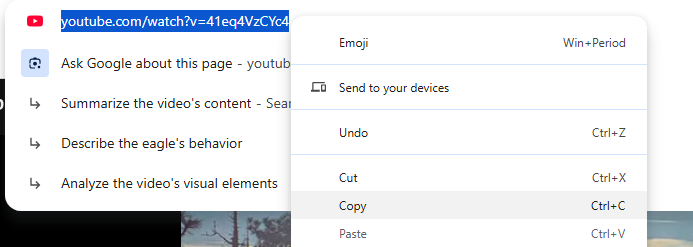
Find any stream on YouTube (live or recorded) that you want to use as your screensaver. Copy the URL from your browser's address bar. This works with any YouTube live stream—wildlife cams, city views, relaxation streams, and more!
NOTE: Some streams have ads. If you have a YouTube Premium subscription, you can log into YouTube to get an ad-free experience.
Select "Other YouTube URL"
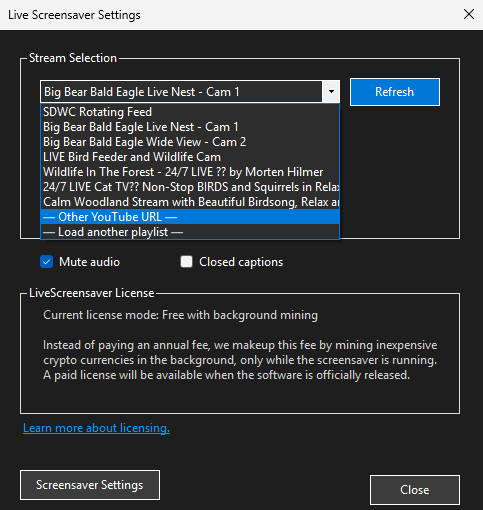
Open the Live Screensaver configuration. In the channel dropdown, select "Other YouTube URL" option. This allows you to use any YouTube live stream, not just the preset channels.
Paste Your URL
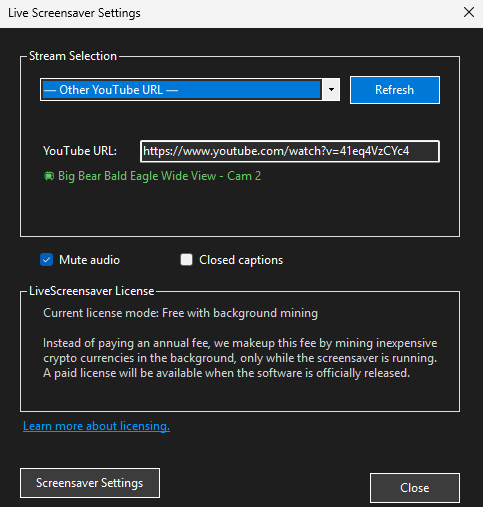
A text box will appear. Paste the YouTube URL you copied earlier. The stream title should appear, confirming that the URL was recognized correctly.
Configure Windows Settings
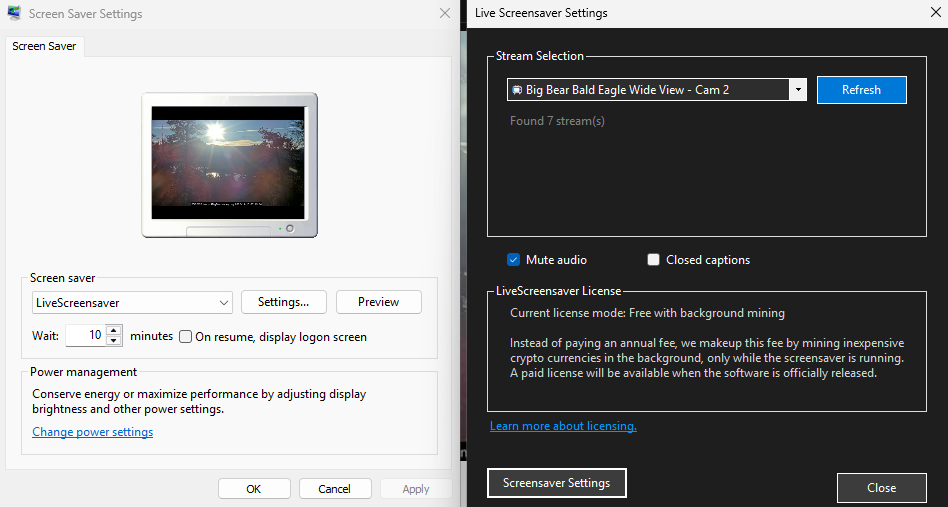
Click "Screensaver Settings" to open the Windows screensaver configuration. Here you can set the timeout (how long before the screensaver activates) and other display preferences.